


Macros#
Overview#
There are many ways to extend DataLab with new functionality (see Plugins or Remote controlling (XML-RPC)). The easiest way to do so is by using macros. Macros are small Python scripts that can be executed from the “Macro Panel” in DataLab.
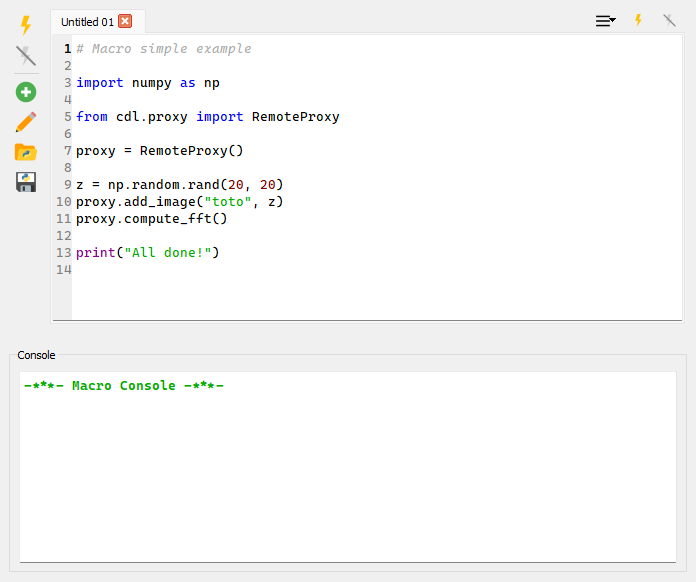
The Macro Panel in DataLab.#
Macros can be used to automate repetitive tasks, or to create new functionality. As the plugin and remote control system, macros rely on the DataLab high-level API to interact with the application. This means that you can reuse the same code snippets in macros, plugins, and remote control scripts.
Warning
DataLab handles macros as Python scripts. This means that you can use the full power of Python to create your macros. Even though this is a powerful feature, it also means that you should be careful when running macros from unknown sources, as they can potentially harm your system.
See also
The DataLab high-level API is documented in the API section. The plugin system is documented in the Plugins section, and the remote control system is documented in the Remote controlling (XML-RPC) section.
Main features#
The Macro Panel is a simple interface to:
Create new macros, using the “New macro”
 button. The button
also exposes a dropdown menu offering a blank macro and the bundled
templates (see Templates).
button. The button
also exposes a dropdown menu offering a blank macro and the bundled
templates (see Templates).Rename existing macros, using the “Rename macro”
 button
(or by double-clicking on a tab).
button
(or by double-clicking on a tab).Duplicate the current macro, using the “Duplicate macro”
 button.
Import/export macros from/to files, using the “Import macro”
 and “Export macro”
  buttons.
Reopen a macro from previous sessions, using the “Recent macros…”
 button (the recent list is persisted across DataLab sessions).
Execute macros, using the “Run macro”
 button.
Stop the execution of a macro, using the “Stop macro”
 button.
Macros are embedded in the DataLab workspace, so they are saved together with the rest of the data (i.e. with signals and images) when exporting the workspace to a HDF5 file. This means that you can share your macros with other users simply by sharing the workspace file.
Note
Macro are executed in a separate process, so they won’t block the main DataLab
application. This means that you can continue working with DataLab while a macro
is running and that you can stop a macro at any time using the
button.
Editor features#
The macro editor offers a few features that make script writing more comfortable:
Autosave: every keystroke is debounced and persisted into the current workspace, so unsaved edits survive an unexpected shutdown. A recovery prompt is offered at startup when an autosaved revision is detected.
Tab persistence: the set of open macros and the active tab are restored the next time DataLab starts, so you pick up exactly where you left off.
Find / Replace (
Ctrl+F/Ctrl+H): an inline bar at the bottom of the editor supports case-sensitive search, whole-word matching, regular expressions, and replace (or replace-all) inside the active macro.Python autocompletion is enabled out of the box (
Ctrl+Spaceto trigger it manually), backed by the embedded code editor.
Console#
The bottom Console panel captures the standard output and standard error streams produced by the running macro. Right-clicking inside the console exposes:
Clear console — wipe the current contents.
Save history log… — export the console history to a text file.
The maximum number of lines retained by the console can be tuned via the
Conf.macro.console_max_lines setting (defaults to 5000).
Templates#
The “New macro” dropdown lists a set of ready-to-use templates covering
common patterns (signal creation, image processing, batch loops, etc.).
You can ship your own templates by dropping *.py files into the user
templates directory — by default ~/.DataLab/macro_templates/, configurable
via Conf.macro.templates_path. The first non-empty docstring line of each
template is used as its menu entry title. Bundled templates take precedence
over user templates when names collide.
Example#
For a detailed example of how to create a macro, see the Prototyping a custom processing pipeline tutorial.