

Command line features#
Run DataLab#
To run DataLab from the command line, type the following:
$ datalab
To show help on command line usage, run the module from a terminal. On Windows,
the datalab GUI entry point may not display console output:
$ python -m datalab.app --help
usage: app.py [-h] [-b path] [-v] [--reset] [--unattended] [--accept_dialogs]
              [--screenshot] [--screenshot_path SCREENSHOT_PATH]
              [--delay DELAY] [--xmlrpcport XMLRPCPORT]
              [--verbose {quiet,normal,debug}] [--smoke-test [REPORT]]
              [h5]

Run DataLab

positional arguments:
  h5                    HDF5 file names (separated by ';'), optionally with
                        dataset name (separated by ',')

options:
  -h, --help            show this help message and exit
  -b path, --h5browser path
                        path to open with HDF5 browser
  -v, --version         show DataLab version
  --reset               reset DataLab configuration
  --unattended          non-interactive mode
  --accept_dialogs      accept dialogs in unattended mode
  --screenshot          automatic screenshots
  --screenshot_path SCREENSHOT_PATH
                        path to save screenshots
  --delay DELAY         delay (ms) before quitting application in unattended
                        mode
  --xmlrpcport XMLRPCPORT
                        XML-RPC port number
  --verbose {quiet,normal,debug}
                        verbosity level: for debugging/testing purpose
  --smoke-test [REPORT]
                        check the installation, write a JSON report (default:
                        datalab_smoke_test.json) and exit with a non-zero code
                        if a check failed
Open HDF5 file at startup#
To open HDF5 files, or even import only a specified HDF5 dataset, use the following:
$ datalab /path/to/file1.h5
$ datalab /path/to/file1.h5,/path/to/dataset1
$ datalab /path/to/file1.h5,/path/to/dataset1;/path/to/file2.h5,/path/to/dataset2
Open HDF5 browser at startup#
To open the HDF5 browser at startup, use one of the following commands:
$ datalab -b /path/to/file1.h5
$ datalab --h5browser /path/to/file1.h5
Check an installation#
To check that DataLab is correctly installed, without opening its main window, use
one of the following commands (DataLab.exe is the executable of the standalone
version for Windows, in its installation folder):
$ datalab --smoke-test /path/to/report.json
$ DataLab.exe --smoke-test C:\path\to\report.json
DataLab checks the packages it relies on, the resources provided with it (macro
templates, PDF documentation, French translations and icons) and processing in a
separate process, writes the results in the JSON report and exits. Without a path,
the report is written as datalab_smoke_test.json in the current folder, which
must be writable. The exit code is 0 if every check passed, 1 otherwise: the report
gives the cause of each failure.
Note
The standalone version shows no console output: read the report. If it
cannot start at all, it exits with code 1 and writes the cause in
datalab_error.log, in the current folder.
Run DataLab demo#
To execute DataLab demo, run the following:
$ datalab-demo
Run technical validation tests#
Note
Technical validation tests are directly included in individual unit tests
of the Sigima library, which provides the
signal and image processing features of DataLab. The test functions including
validation tests are marked with the @pytest.mark.validation decorator.
To execute DataLab technical validation tests, run the following:
$ pytest --pyargs sigima -m validation
See also
See section Validation for more information on DataLab’s validation strategy.
Run complete test suite#
To execute all DataLab unit tests, simply run:
$ pytest
Run interactive tests#
To execute DataLab interactive tests, run the following:
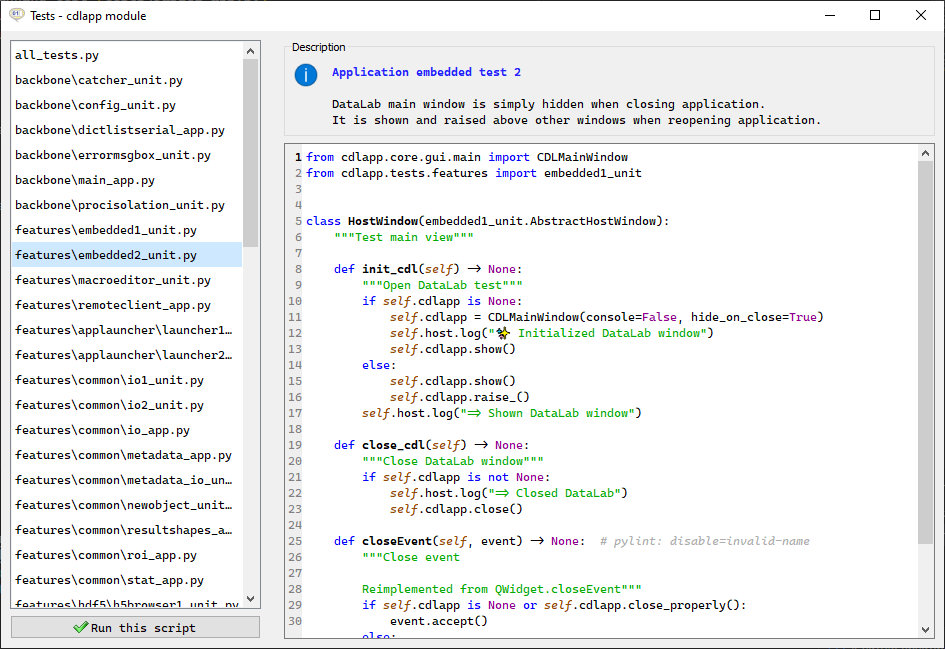
$ datalab-tests